Workspace Update
When a simulation is run, a sequence of “update actions” occurs at each iteration. By default, all components and couplings in the workspace are updated each iteration. This update sequence can be customized and reordered as described below.
The workspace can be run interactively using the toolbar controls (see Toolbars), or programmatically from simulations or the terminal using workspace.iterate(n).
Default Update Behavior
By default, workspace uses a single action called “Update All Components and Couplings”. This uses a buffered update strategy similar to network buffered update. Values are read first, then applied. The sequence is:
- Update all couplings - Producer values are read and sent to consumers
- Update all components concurrently - All components update at the same time
This two-phase approach makes updates order-independent: it doesn’t matter what order components or couplings are in, you’ll always get the same result. (Technically buffering does not occur in cases where something is coupled to itself.) However, it creates a one-iteration delay. Changes in one component aren’t “felt” by coupled components until the next iteration, because couplings read producer values at the start of the iteration before components update.
The Performance tab in the bottom dock provides monitoring information about update cycles.
Customizing the Update Sequence
When the default buffered update does not produce a desired result a custom update order can be defined that allows immediate update without one-step delays (compare network priority update).
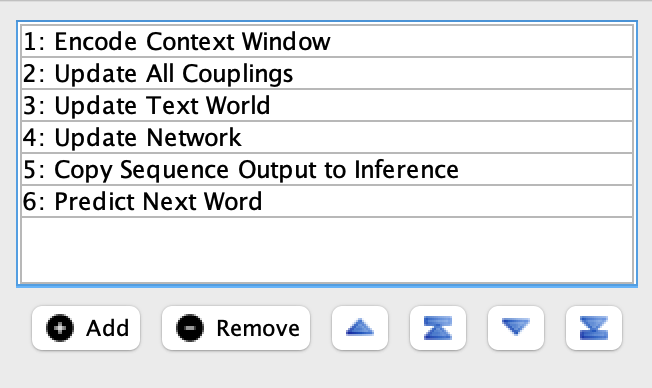
To customize how the workspace updates, go to File > Edit update sequence.... This opens a dialog showing the current list of update actions that will be executed in order at each iteration.
Managing Update Actions
-
Add: Opens a dialog showing available predefined actions (one for each component and coupling in the workspace). Select actions to add them to the sequence.
-
Remove: Deletes the selected actions from the update sequence.
-
Reorder: Drag actions to reorder them, or use the arrow buttons to move them up/down in the sequence. Double arrows move to the top or bottom.
Available Update Actions
The Add button shows these predefined actions:
- Update All Components and Couplings: The default buffered update action (described above)
- Update Component: Updates a single component. One action appears for each component in the workspace.
- Update Coupling (producer>consumer): Updates a single coupling. One action appears for each coupling in the workspace.
By removing the default action and adding individual component and coupling updates in specific orders, you can create custom update sequences that avoid the one-iteration delay. For example, update a component, then its outgoing coupling, then the target component - this way changes propagate immediately in one iteration rather than waiting for the next iteration.
Additional notes:
- Actions can be added multiple times (e.g., update a component twice per iteration)
- If you remove the default action, newly added components and couplings won’t automatically be included in the update sequence
Advanced: Custom Update Actions
For advanced use cases, custom update actions can be created through the simulation framework. This is not available through the GUI. Custom actions allow for highly specialized update behaviors that can bypass or extend Simbrain’s built-in update features. See the simulations documentation for details.