Couplings
A coupling is a one-way informational link between two objects in a Simbrain simulation. Couplings allow information to flow between components in the Simbrain workspace (e.g. from a network to a bar chart). A coupling consists of a producer and a consumer. Producers and consumers are attributes.
Quick Coupling via Context Menus
The easiest way to create couplings is through context menu shortcuts:
- Right-click on a neuron collection and select
plot activation > bar chartto couple a neuron collection to a bar chart - Right-click on components to see available coupling options in the context menu
- Select coupling targets directly from popup menus without needing to understand attribute details
Manual Coupling Creation
For more control over coupling creation:
- Create coupling menus: Right-click on components to access “create coupling” options
- Source-target selection: Choose source and target components using popup menus
- Vector couplings: Right-click on neuron arrays or image worlds to create vector couplings
- Scalar couplings: Right-click on individual neurons for scalar time series couplings
Coupling Manager
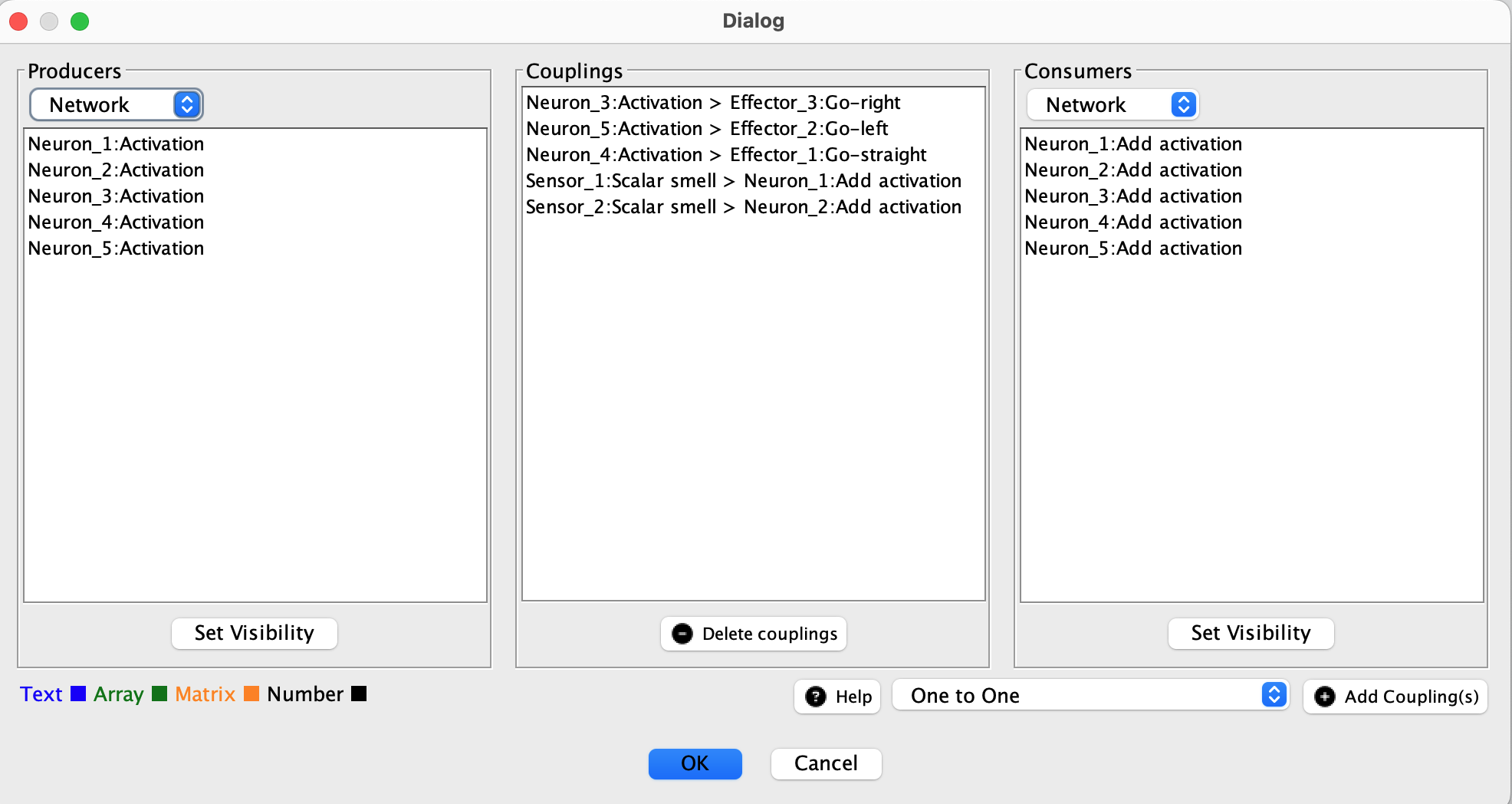
The coupling manager provides comprehensive coupling control. It can create custom couplings between any compatible attributes, control which attributes are visible for coupling, create multiple couplings simultaneously, and expose options that are not available from context menus.
Couplings can also be made programmatically in simulations.
How Couplings Work
A coupling contains a producer and consumer attribute. These two attributes must be of the same type. The purpose of the coupling is to pass information from the producer to the consumer. A producer gathers information from a source object and then passes the result to a target object.

In the code, the producer is generally calling a
getterfunction on a Simbrain object and passing the result to asetterfunction on another object, as inconsumer.setValue(producer.getValue()).
Attributes
An attribute is any property of a component that can send or receive values, the “hooks” that make couplings possible. Examples include neuron activations, synapse weight strengths, bar chart bar values, agent sensor readings in virtual worlds, and time series data points.
Attributes have a data type: scalar (double), vector (double array), or text (string). Only attributes of the same type can be coupled together.
Add Inputs and Set Activation
When coupling to a neuron or neuron array, choose the consumer based on whether the target is clamped.
-
Add inputs: Adds the incoming value to the target’s input buffer, where it is combined with inputs from other couplings and network connections. Use this for unclamped neurons and arrays, which update normally using their update rules.
-
Set activation: Directly sets the target’s activation. An unclamped neuron or array will overwrite that activation when it next updates, so this is not suitable for an unclamped target. Use it for clamped neurons and arrays when a coupling is expected to provide their activation.
Attribute Visibility
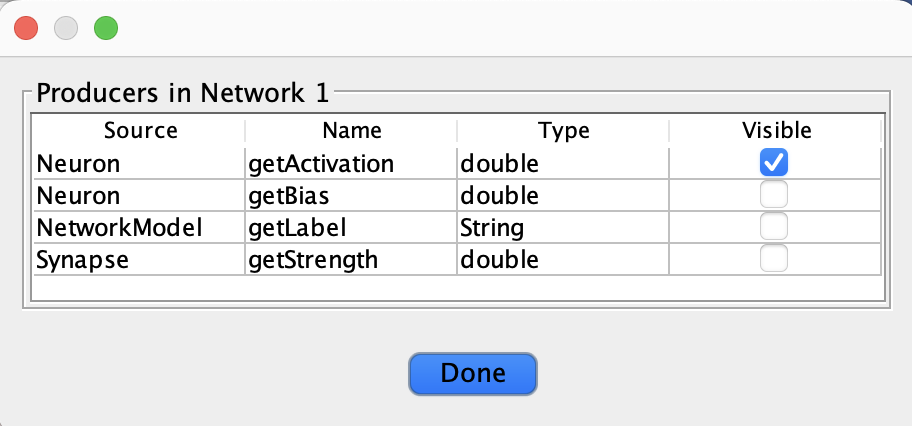
You can view and modify which attributes are visible in the coupling manager using the “Set Attribute Visibilities” button.
Not all attributes are automatically visible in the coupling manager, menus, and context menus. Since components can have hundreds of potential attributes (consider every property of every neuron and synapse in a network), only a subset are visible by default to avoid overwhelming the interface.
To change which attributes are visible, use the “Set Attribute Visibilities” button in the coupling manager. This opens a dialog where you can check or uncheck attributes for the selected component. As you toggle visibility, attributes appear and disappear in the producer and consumer lists.
Coupling Types
Currently Simbrain has three types of attributes, and thus three types of coupling:
- Scalar (doubles in the underlying code).
- Vector (double-arrays). These are shown as green in the coupling manager.
- Text (strings). These are shown as blue in the coupling manager.
Smile matrix objects are converted into arrays.
Coupling can be theoretically any datatype in scripts and in the code, but these are the ones currently supported in the GUI.
Scalar Couplings
An easy way to get a feel for how couplings work is through the example of scalar couplings. An example is shown below that links a Network to an OdorWorld. In this example one of the couplings in the pursuer simulation is shown (the simulation has 5 couplings total, one for each neuron). The coupling shown takes the current activation of the “turn right” neuron (the producer) and sends it to the turn right action on the mouse (the consumer). Note that in this example, the mouse will turn right when the workspace is updated, because there is more right turning activation than left turning activation.
There are many examples of scalar couplings that can be made. Here are some examples where the producer is a neuron:
- A coupling from a single neuron to a single neuron in another network.
- A coupling from a neuron’s activation to a bar in a bar chart.
- A coupling from a neuron’s activation to an agent’s “motor” (turn left, turn right, go straight)
- A coupling from a neuron’s activation to a specific column in a Data World. If the data world is in iteration mode, then with each iteration of the workspace the current neuron activation is “logged” in a specific column of the dataworld.
- A coupling from a neuron’s activation to text in a Text World. For example, when the neuron is active above .5 make the word “hello” appear in the text world
Vector Couplings
The basic idea with vector couplings is the same as with scalar couplings, but they involve lists of numbers. In the image shown below, we see that the producer is the whole neuron collection (which is interfaced with via the interaction box), and the consumer is the whole histogram component. The coupling takes an activation vector, consisting of the 9 activation values of the network, and sends it to the histogram. As can be seen, two neurons have activations below 0, three have activations between .5 and 1, three have activations of 2, and one has an activation above 2.
These vectors can get huge! Tens of thousands of neuron activations! As with scalar couplings, there are many types of activations that can be made. Here are some examples where the producer is a neuron collection:
- A coupling from one neuron collection to another.
- A coupling from a neuron collection’s activations to most types of chart.
- A coupling from a neuron collection to a data world. On each iteration of the workspace the current activations of the neuron collection are used to set the value of the current row of the data world. In this way activations can be logged and viewed in realtime.
- A coupling from a neuron collection’s activation to text in a Text World. For example, when a vector is close enough to a specific vector (in a vector space) make the word “hello” appear in the text world.
Coupling Manager
The most comprehensive graphical access to couplings in Simbrain is via the coupling manager. It can be used to view attributes and couplings, and to create couplings. To open the manager, press the coupling manager button coupling icon on the Simbrain toolbars or use the menu Couplings > Coupling Manager. The coupling manager allows you to create and delete couplings, set attribute visibility, and view workspace attributes.
The coupling manager is organized in to three columns. Multiple items in each of these three columns can be selected by holding the shift key while selecting items or ranges of items.
Producer / Consumer lists: these are the columns on the left and right side of the coupling manager: producers on the left; consumers on the right. Intuitively you are connecting a consumer to a producer to produce a coupling, which is displayed in the middle. The drop down box at the top of each column shows all current workspace components. Selecting that component shows what producing or consuming attributes are currently visible in that component.
Coupling list: this is the middle column of the coupling manager and it shows all current couplings in the workspace. The type of the coupling is color coded, as described above. The same view is also available in the coupling tab of the property tabs.
The following commands are possible in the coupling manager:
Add coupling(s): This button creates new couplings between selected producers and consumers. The coupling creation process:
Enhanced Coupling Features
The modern coupling system includes several advanced features:
Priority-Based Coupling: Attributes have priority values that determine automatic coupling preferences when multiple options are available (this feature applies to scripting rather than the GUI).
Attribute Filtering: The coupling manager can filter attributes by type, visibility, and other criteria.
Delete Couplings: This button deletes all selected couplings from the coupling list.
Set Attribute Visibilities: This button opens the attribute visibility dialog for the currently selected consumer or producer list.