Network Preferences
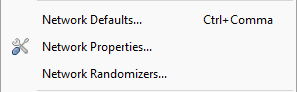
The Network Preferences dialog can be opened by going to File > Network Preferences in a network window, or by using the keyboard shortcut Cmd/Ctrl-,. These preferences are global settings that apply to all networks in the Simbrain workspace.
Colors
The Colors tab allows customization of all visual color elements in the network display:
- Network background color: Background color of the network canvas
- Node hot color: Color for neurons with high positive activation or excitatory polarity
- Node cool color: Color for neurons with low/negative activation or inhibitory polarity
- Connection line color: Color for connections between neurons
- Spiking color: Color used to highlight neurons and connections when spiking
- Excitatory color: Color for excitatory synapses (positive weights)
- Inhibitory color: Color for inhibitory synapses (negative weights)
- Zero color: Color for synapses with zero or near-zero weights
- Weight matrix arrow color: Color for arrows indicating weight matrix connections
- Weight matrix boundary color: Color for weight matrix boundaries and outlines
- Synapse group arrow color: Color for arrows indicating synapse group connections
- Receptive field trace color: Color for forward receptive field trace boxes and connector highlights in CNNs
- Backward trace color: Color for backward receptive field trace boxes and connector highlights
GUI
The GUI tab controls visual display settings and interface behavior:
- Nudge amount: Distance in pixels to move selected objects when using Shift + arrow keys
- Neuron activation decimal places: Number of decimal places to display in neuron activation text
- Tooltip decimal places: Number of decimal places to display in neuron tooltips
- Min synapse size: Minimum visual diameter for synapse circles in pixels
- Max synapse size: Maximum visual diameter for synapse circles in pixels
- Visibility threshold: Hide individual synapses when synapse groups exceed this number of synapses
- Weight matrix target-source format: If yes, each row of a weight matrix corresponds to an output and each column corresponds to an input. If no (source-target format), each row corresponds to an input and each column corresponds to an output
- Matrix image max width/height: Maximum size of the weight matrix image in pixels in either dimension (width or height)
- Show numeric overlays: Show numeric values on neuron arrays, weight matrices, tensors, and connectors when zoomed in. The overlay appears only when the cells are large enough on screen, so you may need to zoom in further and disable auto-zoom while inspecting values.
- Show synapse strength labels: Show numeric strength values on individual synapses when zoomed in
- Synapse strength decimal places: Number of decimal places to display in synapse strength labels
- Synapse label min screen size: Minimum on-screen synapse-circle diameter before a strength label is shown
- Receptive field trace mode: Controls how receptive field trace boxes behave on hover. Auto Navigate changes the visible channel or filter to the traced one. Highlight Matched shows traces only when the matching channel is already visible. Highlight All shows trace boxes without switching the current view
Model
The Model tab contains parameters that affect network simulation behavior:
- Default network time step: Default time step for network simulation in milliseconds. Neurons that numerically integrate differential equations use this as their integration time step. When the network is in continuous mode, each iteration advances by this value
- Default learning rate: Default learning rate for learning algorithms
Connections
- Default connection strategy: Connection strategy used when pressing 3 in the 1-3 trick. Options include All to All, Sparse, One to One, and other connection strategies
Randomizers
The Randomizers tab configures the probability distributions used when randomizing network elements:
- Weight randomizer: Default randomizer for all free weights and weight matrices, regardless of polarity. Used by:
Randomize selectionmenu item (keyboard shortcut R)Randomize symmetricmenu item for weight matrices- Quick randomization operations throughout the network
This randomizer can produce both positive and negative values, potentially changing the polarity of connections. For weight matrices, consider using the weight matrix histogram dialog for more specialized initialization strategies.
-
Excitatory randomizer: Randomizer for all weights from excitatory neurons. Applying this will not change the polarity constraint of a neuron
-
Inhibitory randomizer: Randomizer for all weights from inhibitory neurons. Applying this will not change the polarity constraint of a neuron
-
Activation randomizer: Randomizer for initial neuron activation values
- Bias randomizer: Randomizer for all neuron biases
Each randomizer can be configured with different probability distributions (Normal, Uniform, Log-Normal, etc.) and their parameters. Click the details button to configure distribution-specific settings.