Odor World
The Odor World component is used to simulate a creature in a two-dimensional world. It provides a way to study the embodiment of a neural network in a physical environment, a kind of platform or test-bed for modeling embodied agents controlled by neural networks.
The Simbrain odor world consists of a tilemap, and one or more entities (agents and objects). The entities can be equipped with sensors and effectors and thus coupled to neural networks and other workspace components. To move an entity select and use the arrow keys or WASD on your keyboard to move the selected entity around the map.
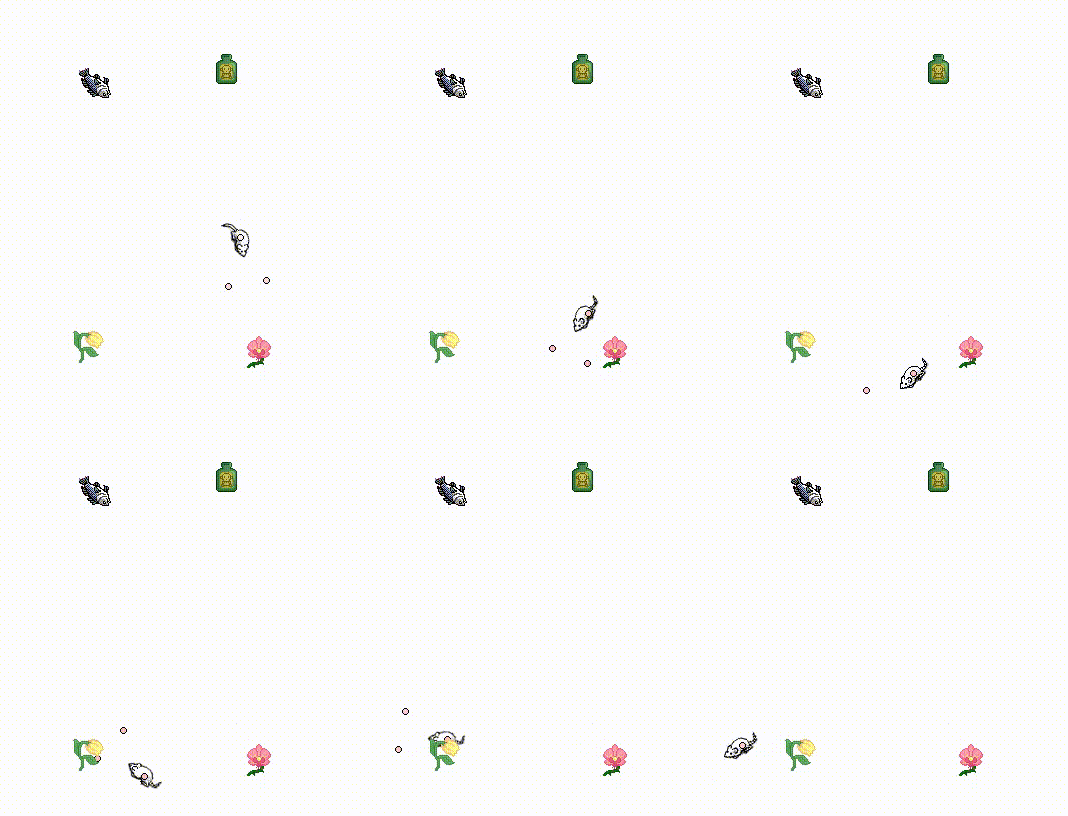
Agents and Objects
Objects that appears in the Odor World window are odor world entities with properties that can be set in the entity dialog (which appears when you double click on the object, or right click on it and select Edit Entity). That dialog gives a sense of what is possible with Odor World objects. Objects can be dragged around. They have velocity properties which can also be set so that they can be made to translate (move along straight line paths) at every iteration. Since the world wraps around by default, these objects will continually move through the world.
Odor world entities can be coupled to other Simbrain components, in particular neural networks. Some are more like agents (like mice, people, etc.), some are more like objects, but they can all be edited in the same way.
To get started understanding how agent sensors and effectors work see the couplings page.
Entities can also be assigned NPC behaviors such as pursue, evade, and wander. These behaviors drive movement directly each workspace tick, which is useful for scripted agents, background characters, and comparison agents in embodied simulations.
Entity Parameters
The Main tab of the entity dialog includes general settings for the selected entity.
- Name: Label used to identify the entity.
- Type: Entity type, which determines the sprite and basic object type used in the world.
- Heading: Direction the entity is facing.
- X: Horizontal position in the world.
- Y: Vertical position in the world.
- Enable Effectors: Enables or disables the entity’s effectors. See Sensors and Effectors.
- Enable Sensors: Enables or disables the entity’s sensors. See Sensors and Effectors.
- Show Sensors / Effectors: Shows or hides the entity’s sensor and effector nodes in the world view.
- Show Trail: Shows or hides the path the entity has traveled. Especially useful for braitenberg simulations to study meandering paths.
- Draw trail without running workspace: Continues drawing the trail even when the workspace is not running. This field is enabled when Show Trail is on.
- Distance per animation frame: (This field is only shown for entity types that use animated sprites). Controls how far an animated sprite must move before advancing to the next animation frame. Lower values make the animation cycle more quickly as the entity moves, while higher values make the animation cycle more slowly. How this looks also depends on system performance and workspace update speed. On a fast system, an entity can move and animate quickly enough that frame changes are harder to see.
Smell Sources and Stimulus Vectors
All non-agent entities in Simbrain are smell sources. Agents are not smell sources by default, but by right clicking on them and selecting Set Smell Sources they can be designated as smell sources.
Smell sources “emit” a smell that can be sensed by smell sensors on other agents. Smell sources are basically vectors of values or “stimulus vectors” that are used to set the values on an agent’s sensors. The impact of a stimulus vector on a smell sensor is scaled by a decay function associated with that particular object. Thus an object’s stimulus vector is like the profile of activation it will produce on a sensor when the sensor is right on top of the object. The stimulus vector, its decay function, and other features (like random noise) are all set in the Entity Dialog.
By associating different objects with different stimulus vectors, you can make them have a differential impact on the sensory neurons of a network. For example, you can make it the case that every swiss cheese will provide an input value of 10 to the first component of smell sensor, while fish will send inputs of 10 to second component of a smell sensor
Sensor Vectors
A smell sensor is associated with a “sensor vector”, that is the result of scaling all the stimulus vectors in its vicinity based their distance from that sensor (using decay functions), and then adding these scaled stimulus vectors together. The process is illustrated below, where two objects with two stimulus vectors are sensed by the agent’s left smell sensor.
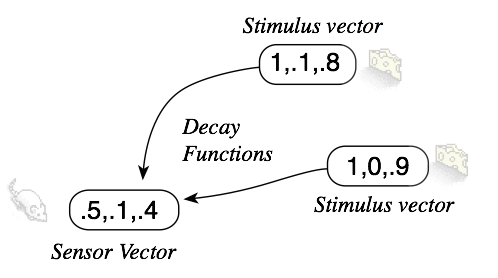
In the example shown, we can suppose that the first stimulus vector decays from (1,.1,.8) to (.1,.01,.08) when it reaches the sensor, and the second decays from (1,0,.9) to (.1,0,.09). These decayed stimulus vectors are added so that the value of the sensor vector will be (.2,.01,.17). Note that the left sensor will receive larger values because it is closer to the two cheese objects.
Note that the sensor vector depends crucially on the location of the sensory apparatus on a creature. I hear things to my left more in my left ear than my right, because my left ear is closer to the source of the sound. The location of a receptor can be set in Simbrain in the sensor tab of the dialog that opens when you double click on an agent. See the discussion of smell sensor to configure sensor angle and length.
Coupling to Smell Sensors
Smell sensors are producers in couplings. The current value of a sensor vector (either the whole vector, or one component) are sent to neurons and neuron collections (or other components) in Simbrain. Smell sensors can produce scalar and vector values. Vector values are just the sensor vector that occurs after summing and scaling as described above. Scalar values are particular components of these sensory vectors. Thus “Smell-Left-1” is the name of a scalar producer that will send the value of first component of the left sensor of an agent, and “Smell-Left-2” is the name of a scalar producer that will send the value of third component of that sensor.
Background on Smell
Smell sources model the process in nature whereby chemicals are emitted from objects, which disperse from the center of the object and for the most part diminish with distance, and then are detected by the olfactory system of an animal. Different objects emit different chemicals. Thus, objects act as a broadcasting center for a unique stimulus patterns, much like how a fine Brie cheese disperses its odor around itself.
Objects in the world emit chemicals that bind to receptors inside a wet bank of tissue in the nose called the olfactory epithelium. Different objects produce chemicals that have a characteristic impact on the nose. If a person’s olfactory epithelium has 100-million sensory neurons, then olfactory inputs for that person consist of 100-million dimensional vectors, lists of 100-million numbers, corresponding to the activity of each receptor in the nose, in response to a given stimulus.
If we encounter more than one object, we smell them all. Thus multiple stimulus vectors are added together. Depending on where an object is relative to a creature’s sensors, the impact will be different. As we come closer to those objects, more of those chemicals are released and an intensified version of the same pattern will occur. Conversely, as we move away, a weakened version of the pattern occurs. Thus the total pattern of inputs to a creature’s olfactory receptors is a function of the objects in its environment together with their locations relative to the creature’s receptors.
Although Odor Worlds are built around olfaction, nothing prevents us from interpreting these functions as providing a general way of producing input vectors. After all, something similar occurs with other sensory modalities. Different objects will produce characteristic patterns of activity–input vectors–on the eyes, ears, and skin. Thus OdorWorld can be seen as a general framework for modeling the differential impact of objects on an agent’s sensory apparatus.
Sensors and Effectors
Odor world entities can be equipped with one or more sensors and effectors and in this way coupled to neural networks to produce simulations of agents in environments.
An agent in Odor World uses sensors to react to the environment, detect objects, where it is, what tile is it on, or another agent’s speech. They are coupled to input neurons in a neural network, which activate when the relevant stimulus occurs. Effectors make the agent move and speak. Effectors are coupled with output neurons in neural networks. When neurons activate an agent’s effectors, it performs the action associated with the effector, either moving, turning, or making an utterance.
Sensors and effectors do not come built-in to agents by default, but can be added using by opening the Add Sensor and Add effector windows.
Double click on the agent to display the entity dialog and select the sensors or effectors tab.
To delete a sensor, select all the sensors to be deleted in the list and click on the Delete button at the bottom of the panel. To add a sensor, click on the Add button at the bottom of the panel. Then, select the sensor type and input the appropriate parameters.
To display an agent’s sensors or effectors, double click on the agent in Odor World and select the effectors tab. The effector panel lists all of an agent’s effectors along with its effector type and label.
To edit a sensor effector, right click on any part of the row and select Edit effector...
To add an effectoror sensor, click on the “Add” button at the bottom of the panel. Then select the effector type and input the appropriate parameters.
To delete an effector or sensor, select the effectors to be deleted in the list and click on the “Delete” button at the bottom of the panel.
Sensors
Here are some generic properties of multiple sensor types
-
Label: Shows up in coupling menu and can be used to identify the sensor. Should indicate what the sensor does.
-
Sensor Angle: Determines the angle from the agent’s center of perspective at which the sensor will be placed. An angle of 0 places a sensor directly in front of the agent, a positive angle places a sensor to the left of the agent, and a negative angle places a sensor to the right of the agent.
-
Sensor Length: Determines the distance from the agent’s center to which the sensor will be added. A sensor length of 0 places a sensor at the very center of the agent, which makes the sensor angle irrelevant.
Smell Sensor
Objects in Odor World can emit smells that smell sensors can detect. See the objects and smell sources page for more details on how smell vectors and sensor vectors work, and how they can be used in couplings.
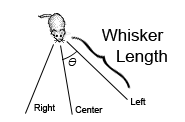
By default agents have three smell sensors: a left whisker, a central sensor, and a right whisker. The left and right whiskers shoot off symmetrically from the center perspective of the agent at an angle determined by the parameter Sensor Angle, denoted by theta in the image below, which is in degrees.
Parameters
- Max value: Maximum value of the sensor when agent is right on top of the sensor.
- Show label: If true, show a label for the smell sensor
- Dispersion tab: See dispersion
Hearing Sensor
A Hearing sensor is associated with a specific utterance. When a hearing sensor is activated by another agent’s speech effector, a thought bubble containing the associated utterance is displayed, and it can send an value to a neural network via a coupling.
Parameters
-
Utterance: The string or phrase associated with a hearing sensor which activates only in the presence of a speech effector using the same string or phrase.
-
Output Amount: Specifies the amount of activation sent to any neuron coupled to this sensor. This is usually set to 1 (0 for inactivation).
-
Linger Time: Anything heard will remain “heard” for this many iterations. Allows the agent to process a signal before it disappears.
-
Characters per Row: The maximum number of characters that can be displayed in one row of the hearing bubble. This only affects visual presentation/display and has no effect on activation parameters.
Grid Sensor
Agents can detect their spatial location in the OdorWorld map via grid sensors. The sensor divides a region of the world into a grid of cells, and outputs a vector where one element is active (set to the activation amount) depending on which cell the agent currently occupies. An input neuron coupled with a grid sensor acts like a place cell.
To use grid sensors effectively, create a neuron array with dimensions that match the grid sensor’s rows and columns (e.g., a 5x5 grid sensor should be coupled to a 5x5 neuron array).
Parameters
- Activation Amount: The activation value sent to a neuron when the agent is in the corresponding grid cell
- Start X: X-coordinate for the location of the top-left corner of the grid sensor
- Start Y: Y-coordinate for the location of the top-left corner of the grid sensor
- Num Columns: Number of columns in the sensor grid
- Num Rows: Number of rows in the sensor grid
- Cell Width: Width (horizontal length) of each cell in the sensor grid (in pixels)
- Cell Height: Height (vertical length) of each cell in the sensor grid (in pixels)
- Grid Visibility: Whether to display the sensor grid overlay in the world view
- Highlighter Visibility: Whether to highlight the currently active grid cell
Object Sensor
Agents in Simbrain are able to detect the presence of objects via object sensors. This is a simple alternative to using smell sensors link. An object sensor reacts to a specific object type (which is set in the object type field of the entity dialog link). Object sensors are graphically represented by a white dot.
Parameters
-
Object Type: Determines the type of object a sensor responds to (ex. Swiss, Candle, Fish).
-
Show Label: Determines whether or not to make the label visible on top of the sensor node. ‘Yes’ to show label, ‘No’ to hide label.
-
Base Value: Specifies the base value of the output before the decay function applies.
-
Decay Function: Specifies the type of decay function applied to the sensor (Gaussian, Linear, Quadratic, Step).
Bump Sensor
Agents can detect collisions with objects in OdorWorld (such as trees, tents, walls, etc.) via bump sensors. When the agent touches or collides with any collidable object, the bump sensor activates. Bump sensors are graphically represented by a white dot.
Parameters
- Sensor Angle: Angle from the agent’s center at which the sensor is positioned (degrees)
- Sensor Length: Distance from the agent’s center to the sensor
- Base Value: Output value when the sensor detects a collision
- Show Label: Whether to display the sensor’s label in the world view
Tile Sensor
Agents are able to sense specific tile types in a tile map. The sensor responds when the agent is on or near tiles of a specified type (e.g., “water”, “grass”). The sensor uses a decay function to determine activation based on distance from matching tiles.
Parameters
- Tile Type: The type of tile this sensor responds to (e.g., “water”, “grass”)
- Sensor Angle: Angle from the agent’s center of perspective at which the sensor is placed (degrees)
- Sensor Length: Distance from the agent’s center to the sensor location
- Base Value: Base activation value before decay is applied
- Decay Function: Determines how the sensor’s response diminishes with distance from matching tiles. Configured in a separate dispersion tab.
3D View Sensor
Odor World includes a View3DSensor that provides a pseudo-3D first-person render from an agent perspective.
See 3D World for setup details, parameters, coupling outputs, and related 3D simulations.
Effectors
Speech Effector
Agents in Simbrain can emit speech via speech effectors. These simulate simple singaling between agents. Each effector is associated with a specific utterance. When the effector is activated above a specified threshold, the agent will make that utterance, which will appear in a speech bubble. The speech will be “hearable” by a hearing sensor on any other agent within a specified radius.
Parameters
-
Utterance: The string or phrase associated with a speech effector which, when in close proximity, activates a hearing sensor associated with the same string or phrase.
-
Threshold: The activation threshold above which an utterance can be detected by a speech effector’s hearing sensor counterpart.
-
Characters per row: The maximum number of characters that can be displayed in one row of the hearing bubble. This only affects visual presentation/display and has no effect on activation parameters.
-
Dispersion tab: How far away the utterance can be heard (a radius in pixels). Only uses the
dispersionfield of the decay function it is associated with.
Straight Movement Effector
Agents in Simbrain can be prompted to move forward via straight movement effectors. So long as the neuron coupled to a straight movement effector is activated, the Agent will continue to move forward unless another entity stops it from doing so.
Parameters
- Base Movement Amount: Determines the distance in pixels that the agent moves when this effector is activated. A positive value moves the agent straight forward, a negative value moves the agent straight backward.
Turning Effector
Agents in Simbrain can be prompted to shift its direction to the left or right via turning effectors. When the neuron coupled to a turning effector is activated, the agent’s movement will shift according to the turning direction and magnitude specified by the effector.
Parameters
-
Turning Direction and Weight: Determines the direction and magnitude of an agent’s turn. Direction - A positive value makes the agent turn left, a negative value makes the agent turn right. Weight - Any number besides 1 or -1 will scale the turn’s magnitude. This is basically a scalar multiplied by the turning magnitude to determine the change in an agent’s movement.
-
Turning Amount: Determines the magnitude of an agent’s turn (in radians) with respect to the turning direction.
Tile Map
Each world is associated with a tilemap, a grid of tiles created using the Tiled map editor. Often this map is simply empty and so nothing is visible. To see a map use File > Load Tile Map... and choose one. This will give you a sense of how maps work.
The concept of a tile map comes from tile-based video games. Tiles are arranged into layers and can be associated with properties like blocking agents or not. Tiles can also be associated with tile sensors, e.g. water tiles can be sensed by a tile sensor. Each tile is associated with one member of a “tile set” (Simbrain currently just has one that it uses from a dungeon game), and the tiles can also be associated with types like water so that tile sensors can sense them.
Editing Tiles
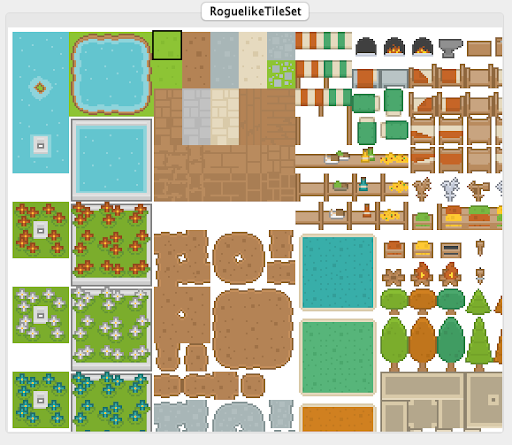
To set the tile anywhere in the world just double click. This shows the tile set available. The one that is surrounded has black around it. You can double click again to set that tile.
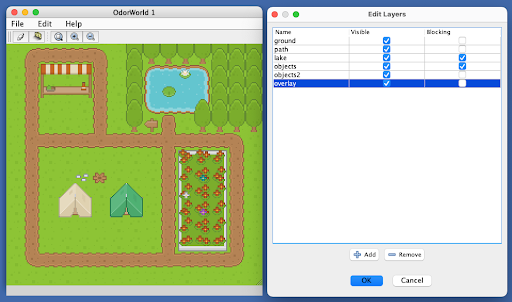
Editing Layers
The tile map is also organized into layers. To edit the layers use the Edit > Edit Layers dialog. This allows you to specify some layers as blocking, which means agents won’t be able to pass through nonempty tiles in that layer. This is the Yulin’s World tile map. If you open Yulin’s work and open this dialog and click on the visible checkboxes the way it works should be intuitive,
Building custom tilemaps and tilesets
This can be done using Tiled. To start you can open one of the .tmx files included with simbrain and use it as a base. Then you can import that.
Note: when you edit the tilemap in Simbrain these updates can be saved. However you cannot export these changes and then edit in Tiled. That is, workflows from Tiled to Simbrain are possible (keep editing in Tiled and importing to Simbrain), but once you start editing in Simbrain it has to stay in Simbrain.
Preferences
Odor World has both global preferences and per-world properties.
Global Preferences
Global preferences apply to all odor worlds in the workspace. Access them via File > Odor world preferences... in the main Simbrain menu.
- Tile map directory: Default directory for loading tile maps
World Properties
Each odor world also has local properties that can be set via File > World Properties in the odor world menu. These include settings for map boundaries wrapping, object blocking behavior, and camera centering.
Menu Commands
File Menu
- Import from xml: Import data from a .csv file (comma separated values).
- Export from xml: Export (.csv) : Export data to a .csv file (comma separated values).
- Load Tile Map: Load premade tile maps
- Clear Tile Map: Remove the current tile map
- World Properties: Set local properties for this specific odor world (map boundaries wrapping, object blocking, camera centering)
- Rename: rename world.
- Close: Close the current Odor World.
Edit Menu
- Add Entity: Add an odor world entity. This default cheese.
- Add agent: Add an odor world entity pre-equipped with default sensors and effectors.
- Delete selected entities Backspace: deletes whatever entity/object is currently selected
- Edit Layers: allows you to edit tile layers to be visible and enable/disable blocking for each layer
- Turn on all trails: When on, agents leave a trail where they move which allows behavior to be tracked
- Turn off all trails: Stop tracking trails.
- Clear all trails: Remove all visible trails