Text World
Text World transforms text into numbers and numbers into text, primarily for modeling language processing. It enables networks to “read” text, produce simulated speech, and develop connectionist models of language. Text World can also be used more generally to incorporate text processing into simulations, for example to log information or issue commands to networks.
The component uses token embeddings that associate text tokens with vector representations, which can be coupled to neural networks and other components via couplings.
To see Text World in use, try Simulations > Language > Tiny Language Model or Simulations > Language > (Beta) Pretrained Language Model (LFM2.5).
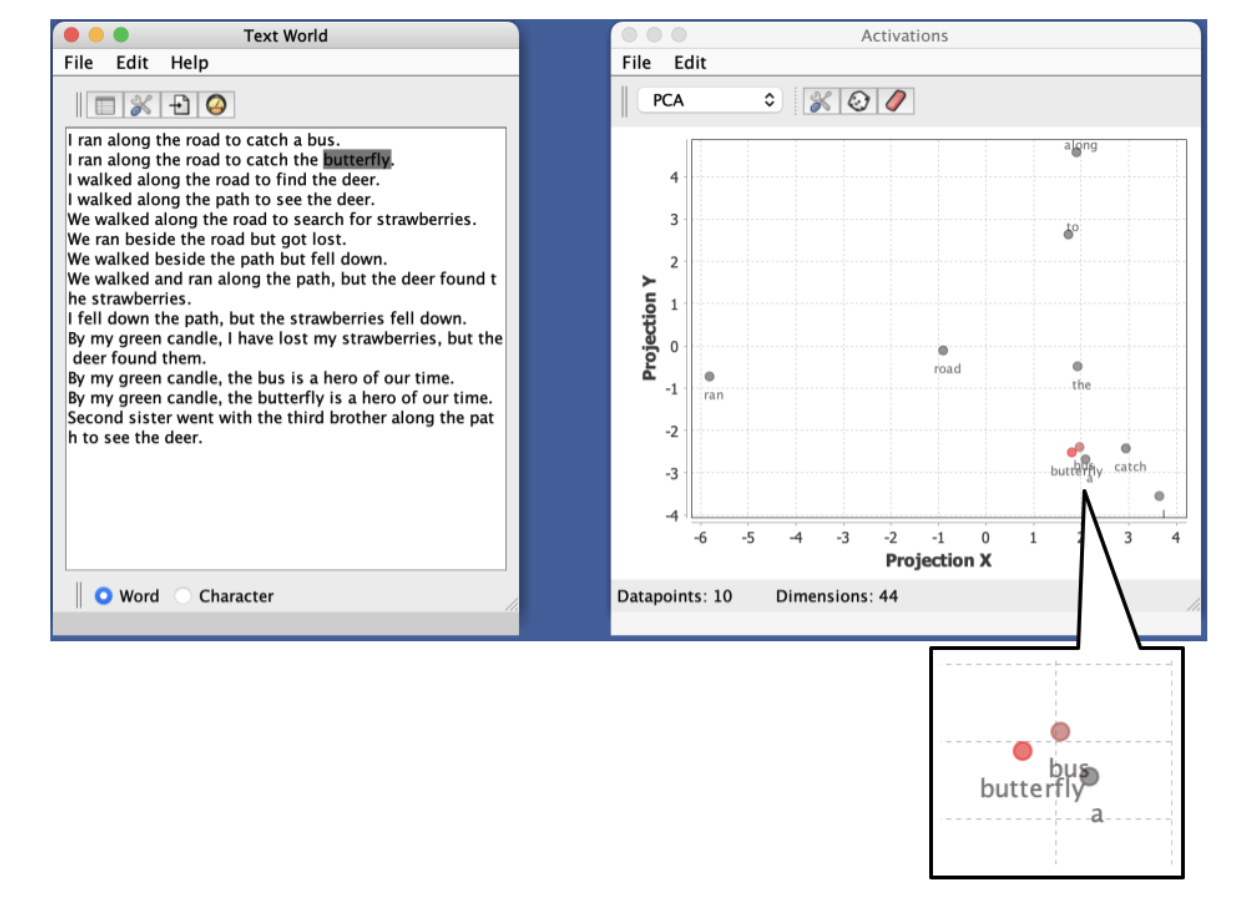
Creating a Text World
To create a new Text World component:
Insert > New World > Text Worldfrom the menu- Right click on the desktop and select
Insert > New World > Text World - Click on the world icon and select
Text World
Token Embeddings
Text World uses token embeddings to associate string tokens (words, characters, or subwords) with vector representations. The token embedding is a bidirectional mapping: it converts tokens to vectors (for sending to networks) and also converts vectors back to tokens (by finding the nearest token to a given vector). This allows networks to both consume and produce text.
Each token maps to a vector of numbers that can be consumed by neural networks. The token embedding can be viewed and edited via View > Word embedding editor...
All tokens are normalized to lowercase internally, which may affect the handling of special characters and emojis.
Embedding Types
Text World supports several embedding types, each with different properties:
One-Hot Encoding
Each token maps to a unique vector with a single 1 and zeros elsewhere. This creates an identity matrix where each token has a distinct, orthogonal representation.
- Remove stopwords: If enabled, common words (e.g., “the”, “and”) are excluded from the embedding
- Convert all upper case to lower case: If enabled, all tokens are normalized to lowercase
One-hot encoding is simple and efficient for small vocabularies but becomes impractical for large vocabularies due to the high dimensionality (one dimension per unique token).
Co-Occurrence
Creates dense vector representations based on word co-occurrence patterns in a training document. Words that appear in similar contexts will have similar vector representations.
- Window size: Context window size in tokens (minimum: 1). Determines how far to look for co-occurring words.
- Bidirectional: If true, considers context both before and after each token. If false, only considers preceding context.
- Use PPMI: If true, applies Positive Pointwise Mutual Information transformation to reduce the impact of frequent but uninformative co-occurrences.
- Remove stopwords: If enabled, common words are excluded before building the co-occurrence matrix
- Convert all upper case to lower case: If enabled, normalizes all tokens to lowercase
Co-occurrence embeddings capture semantic relationships between words based on distributional similarity. Larger window sizes capture broader topical relationships, while smaller windows capture tighter syntactic relationships. PPMI weighting is generally recommended for better semantic representations.
Random
Generates random vector representations for each token by sampling from a probability distribution. This can be useful for testing or as an initialization for training.
- Vector length: Number of dimensions in each token’s vector representation (minimum: 1). Also called the embedding dimension. Unlike one-hot and co-occurrence which produce square matrices, random embeddings let you specify any vector length.
- Distribution: The probability distribution used to generate random values (e.g., normal distribution)
- Remove stopwords: If enabled, common words are excluded from the embedding
- Convert all upper case to lower case: If enabled, normalizes all tokens to lowercase
Random embeddings provide a baseline for comparison or can serve as initial embeddings for further training.
Tokenizers
Tokenization determines how text is split into individual tokens. Text World supports multiple tokenization strategies:
Simple Tokenizer
Splits text on whitespace and punctuation boundaries. By default, only words are extracted as tokens, but this can be customized.
- Use punctuation: If true, keep punctuation marks and add them as tokens
- Use spaces: If true, use spaces, tabs, and newlines as distinct tokens
- Use returns: If true, use newlines as tokens
The Simple Tokenizer is fast and straightforward, suitable for most basic text processing tasks.
Byte Pair Encoding (BPE)
Advanced subword tokenization that learns merge rules from training text. Byte Pair Encoding can handle unknown words by breaking them into known subword units, making it more flexible than simple word-based tokenization.
- Max tokens: Maximum number of tokens to generate
- Min frequency: Minimum frequency of tokens to keep
- Max iterations: Maximum number of iterations to run
BPE learns to merge frequently occurring character pairs during training, building a vocabulary of subword units. This allows the tokenizer to handle out-of-vocabulary words by decomposing them into known subwords.
BPE is currently experimental. The tokenizer needs to be trained on a document before it can be used (via extracting an embedding from text).
The tokenizer can be configured via the Preferences dialog or when extracting embeddings from a document.
Extracting Embeddings from Documents
To create an embedding from a text document:
- Use
View > Extract embedding from current text(or the toolbar button) - Choose the embedding type: One-Hot, Co-Occurrence, or Random
- Configure the tokenizer options (Simple Tokenizer or Byte Pair Encoding)
- Click OK to generate the embedding from the unique tokens found in the current text
The text should be representative of the vocabulary and language patterns you want to model. For co-occurrence embeddings, larger documents generally produce better semantic representations since they provide more context for learning word relationships.
Preferences
Text World provides several configurable options via Edit > Preferences:
-
Auto advance: If true, automatically advance to the next token on each workspace update. This allows the text to be “read” sequentially during simulation.
-
Highlight current token: If true, highlight the currently selected token with a background color. This provides visual feedback about which token is currently active for couplings.
-
Show token boundaries: If true, draw rectangles around each token to show how the text has been tokenized. Useful for understanding how the tokenizer is parsing the text.
-
Tokenizer: Configure the tokenizer type (Simple Tokenizer or Byte Pair Encoding) and its parameters. Changes to the tokenizer require that a training document has been set.
-
Stop at end: If true, stop workspace updates when the end of the text is reached. If false, the position wraps back to the beginning.
Couplings
Text World supports both producing and consuming data:
-
Producing vectors: The current token’s vector representation can be sent to neurons or neuron collections. Use
Edit > Create TextWorld Couplingto create producer couplings. ThecurrentVectorproducer sends the embedding vector for the currently selected token.Unrecognized tokens: If the current token was not present in the training document used to build the embedding, a zero vector (all zeros) of the appropriate dimension is produced. This allows the simulation to continue even when encountering unknown tokens.
-
Consuming vectors: Vector data from networks can be matched to the closest token in the embedding, which is then displayed in the text area. The
displayClosestWordconsumer finds the nearest neighbor in the embedding space. -
Producing strings: The current token as a string can be sent to other components via the
currentTokenproducer. -
Consuming strings: Text can be added to the text area via the
addTextAtCursororaddTextAtEndconsumers. -
Record embeddings: Text World can send its vector sequence to a Data World for recording. Use
Edit > Record token embeddingsto create this coupling automatically. -
Couple plots: Token vectors can be sent directly to plot components for visualization. Use
Edit > Couple Plotsto create plot couplings (e.g., projection plots to visualize word vector spaces).
Menu Commands
File Menu
- Import from xml: Import Text World configuration from a
.xmlfile - Export to xml: Export Text World configuration to a
.xmlfile - Load text…: Load text content from a
.txtfile into the text area - Rename: Rename the current Text World window
- Close: Close the current Text World window
Edit Menu
- Find / Replace… (Cmd/Ctrl+F): Open find and replace dialog to search for text patterns and replace them
- Record token embeddings: Create a coupling to a Data World component that records the token vector sequence over time
- Couple Plots: Create couplings to plot components for real-time visualization of token embeddings (e.g., projection plots)
- Create TextWorld Coupling: Open the coupling interface to create connections between Text World and other components
- Preferences: Open the preferences dialog to configure display options, tokenizer, and other settings
View Menu
- Extract embedding from current text: Generate a token embedding from the text currently displayed in the text area
- Word embedding editor…: Open a table view to inspect and manually edit the token-to-vector mappings. This shows the complete embedding matrix with tokens as rows and vector dimensions as columns.
Token Embedding Editor
The word embedding editor displays the token embedding as a table where each row represents a token and each column represents a dimension in the embedding space.
For one-hot and co-occurrence embeddings, the matrix is square (N?N) where N is the number of unique tokens found in the training document. For random embeddings, the matrix has N rows (one per token) and M columns where M is the user-specified vector length.
The editor provides several actions:
- Extract embedding: Generate a new embedding from a document
- View Word Embedding Source: View the original training document used to create the embedding
- Import CSV: Load token embeddings from a CSV file. The first column should contain token names, and subsequent columns contain the vector values for each dimension.
- Export CSV: Save the current token embedding to a CSV file (includes token names in the first column)
- Show matrix plot: Visualize the embedding matrix as a color-coded plot
- Open projection: Create a projection plot to visualize tokens in 2D or 3D space using their embeddings
Help Menu
- Help: Link to this documentation page
Toolbar
- Extract embedding from current text: Generate token embedding from current text
- Word embedding editor: Word embedding editor…
- Text World Preferences: Preferences