Image World
ImageWorld is a tool designed for managing sets of images and using them as inputs to other components, primarily neural networks. The interface can be used to display, create, and edit sets of images that are sent to networks.
The component can be used to model visual processing, for example retinal processing, or machine learning vision applications. Image World includes powerful drawing tools with configurable brushes, colors, and smoothing options, making it suitable for both handcrafted image creation and imported image processing.
To get a quick sense of how Image World works, try Simulations > Vision > Simple drawings (10 x 10).
Interface Layout
Image World has two toolbars:
- Top toolbar: Contains pipeline management controls (add, delete, edit pipelines) and drawing/editing tools (fill, clear, color selection, brush settings)
- Bottom toolbar: Contains image navigation controls (previous/next image, snapshot, delete) and displays the current frame number and output dimensions
Pipelines and Couplings
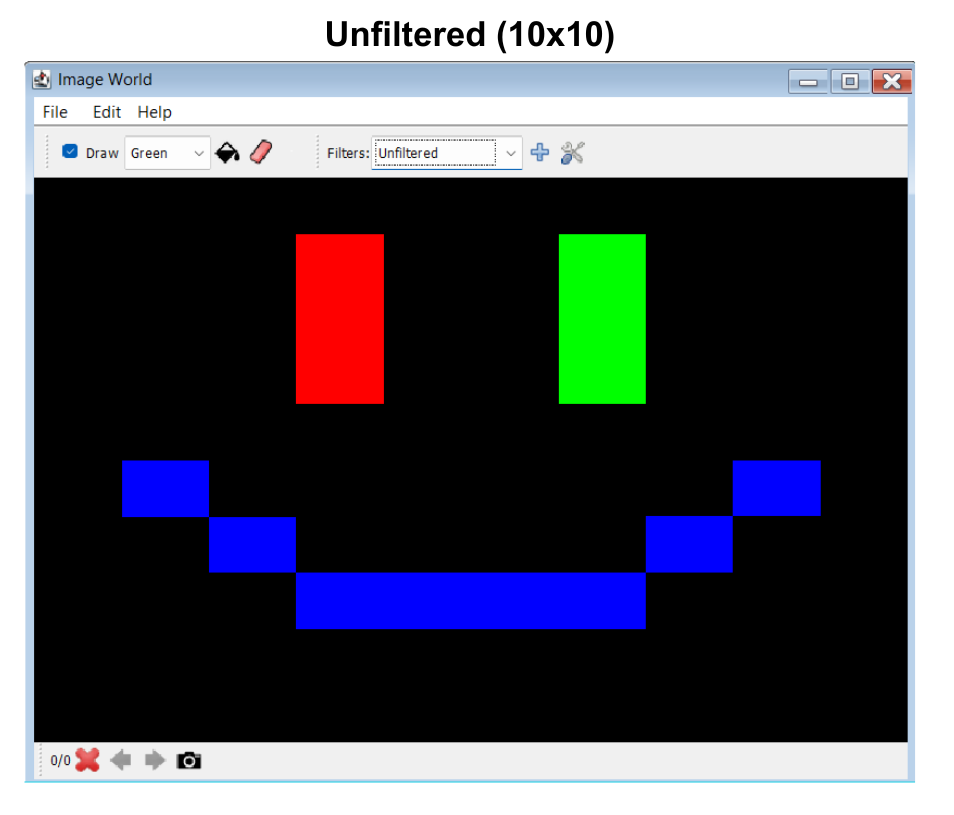
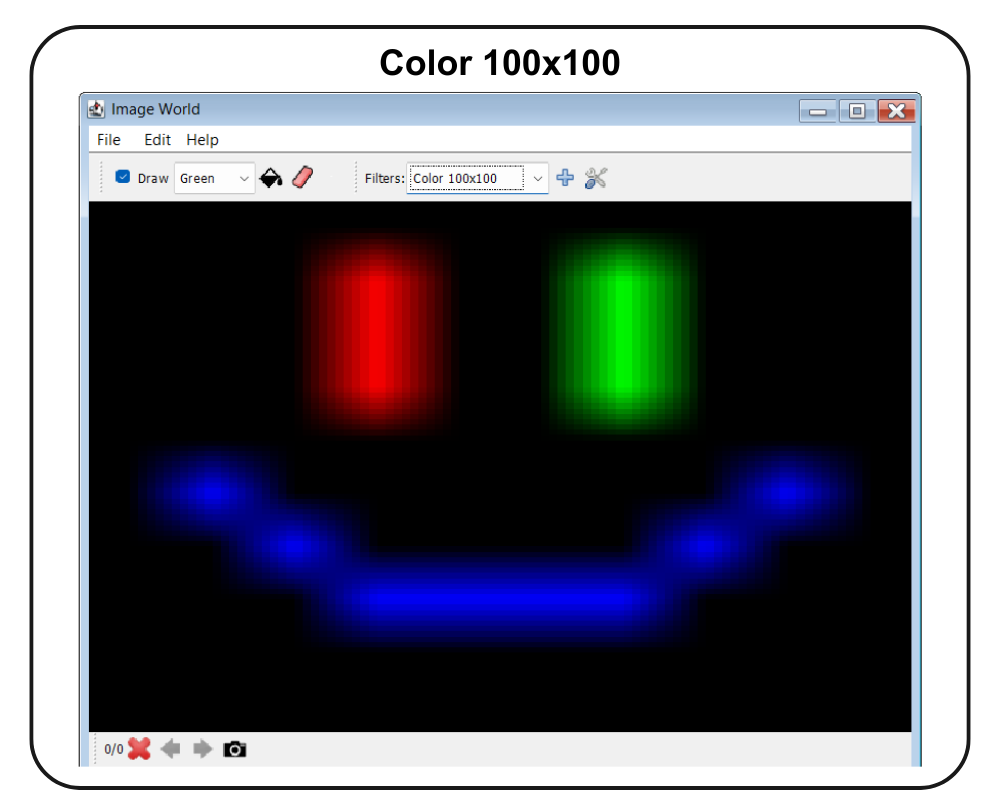
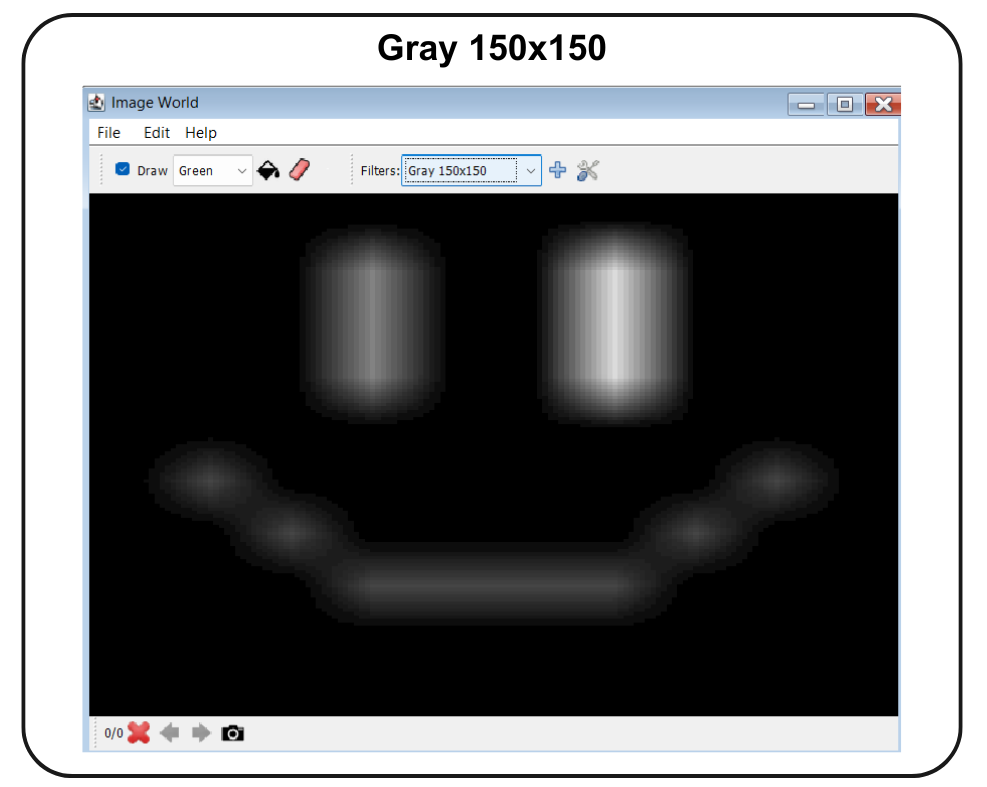
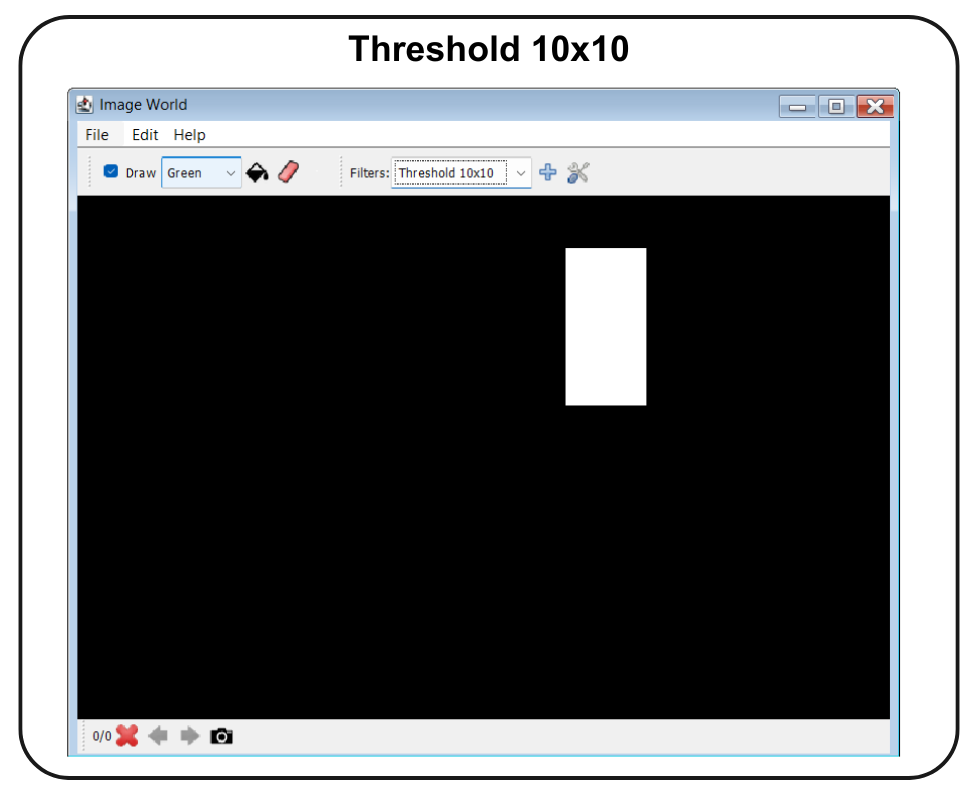
Each image in an image album has a raw form that can be viewed by selecting the Unfiltered pipeline. One or more pipelines can be added to process the raw image. These pipelines consist of a sequence of operations (resize, grayscale conversion, threshold, edge detection, etc.) that transform the image to a specific resolution and format. Pipelines are named in a way that indicates what they do, e.g. Gray 100x100, Color 100x100, or Threshold 10x10. This image gives a sense of how it works:
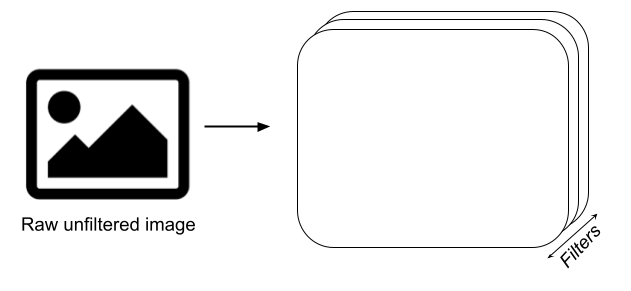
The purpose of these pipelines is to allow the image to be coupled to a neuron array or neuron collection with the appropriate number of neurons.
The Pipelines dropdown box in the top toolbar can be used to view one of the pipelines and see its impact on the raw image, or to view the unfiltered image. Regardless of which pipeline you are viewing, all remain active, and thus one image can be coupled to a network in multiple ways simultaneously. The output dimensions of the currently selected pipeline are displayed in the bottom toolbar (e.g., “100×100”).
Here are a few different pipelines applied to an unfiltered example image:
Default Pipelines
Several default pipelines are provided when you create a new Image World:
- Unfiltered: The raw image without any processing
- Gray 100x100: Resizes to 100x100 and converts to grayscale
- Color 100x100: Resizes to 100x100 in color
- Threshold 10x10: Resizes to 10x10 and applies binary threshold
- Threshold 250x250: Resizes to 250x250 and applies binary threshold
Managing Pipelines
The top toolbar provides controls for managing pipelines:
- Pipelines dropdown: Select which pipeline to view and use for couplings
- Add pipeline (+): Create a new custom pipeline with a chosen name
- Delete pipeline (-): Remove the currently selected pipeline (cannot delete the default Unfiltered pipeline)
- Edit pipeline (wrench icon): Open a dialog to configure the operations in the current pipeline
The default Unfiltered pipeline cannot be edited or deleted. When a pipeline is selected, the edit and delete buttons will be disabled if it’s the default pipeline.
Available Operations
When editing a pipeline, you can add the following operation types. Operations are applied in sequence, so the order matters. Each operation can be enabled or disabled individually without removing it from the pipeline.
Common Properties
All pipeline operations share these properties:
- Enabled: Whether this operation is active
- Name: Display name for this operation
Resize
Changes the image dimensions to specified width and height values. Uses high-quality bilinear interpolation for smooth scaling.
- Width: Target width in pixels (must be positive)
- Height: Target height in pixels (must be positive)
For common properties like Enabled and Name, see above.
If input dimensions already match the target, no scaling is performed. Resize operations are typically placed early in the pipeline to reduce computational cost of subsequent operations.
Grayscale
Converts color images to monochromatic (grayscale) using standard color space conversion. This operation has no configurable parameters beyond the common properties (Enabled and Name).
Uses the standard luminance formula to preserve perceived brightness when converting to grayscale. Often used before edge detection or threshold operations.
Threshold
Converts images to binary (pure black and white) by comparing each pixel’s brightness against a threshold value. Pixels with brightness above the threshold become white; those below become black.
- Threshold: Threshold value from 0.0 to 1.0
- 0.0 = all pixels become white (minimum threshold)
- 1.0 = all pixels become black (maximum threshold)
- 0.5 = typical middle value for balanced thresholding
The operation first converts the image to grayscale using the standard luminance formula (0.299 × Red + 0.587 × Green + 0.114 × Blue), then applies the threshold. Useful for creating high-contrast binary representations.
For common properties like Enabled and Name, see above.
Edge Detection
Detects edges in images using various algorithms. Edges are identified where rapid changes in brightness occur, typically corresponding to object boundaries.
- Method: Edge detection algorithm
- Sobel: Uses 3×3 kernels with more weight on center pixels for noise reduction. Good general-purpose choice.
- Prewitt: Similar to Sobel but with equal weighting. Slightly more sensitive to noise.
- Roberts: Uses 2×2 kernels for fast computation. Most sensitive to noise but computationally efficient.
- Canny: Multi-stage algorithm (currently simplified implementation matching Sobel behavior)
- Threshold: Threshold for edge detection from 0.0 to 1.0. Higher values detect only stronger edges.
- Enhance Edges: Whether to enhance detected edges for better visibility. When enabled, edge strength is doubled for clearer visualization.
- Gaussian Blur Sigma: Apply Gaussian blur before edge detection to reduce noise (0 = no blur). Higher values (e.g., 1.0-2.0) reduce noise but may blur fine details.
The image is automatically converted to grayscale before edge detection. Applying a small amount of Gaussian blur (sigma ~1.0) can improve results on noisy images.
For common properties like Enabled and Name, see above.
Gabor Filter
Applies Gabor filtering for detecting edges and textures at specific orientations and frequencies. Gabor filters combine a Gaussian envelope with a sinusoidal wave pattern and are commonly used in computer vision for feature detection.
- Frequency: Spatial frequency of the sinusoidal component (range: 0.01 to 1.0). Higher values detect finer details.
- Orientation (degrees): Orientation of the filter in degrees (range: 0-359). Determines which edge orientations are detected (e.g., 0° for vertical, 90° for horizontal).
- Sigma X: Standard deviation in X direction (minimum: 0.1). Controls the width of the Gaussian envelope.
- Sigma Y: Standard deviation in Y direction (minimum: 0.1). Controls the height of the Gaussian envelope.
- Phase: Phase offset of the sinusoidal component. Shifts the wave pattern.
- Kernel Size: Size of the filter kernel in pixels (must be odd, minimum: 3). Larger kernels capture more spatial context but are slower to compute.
Gabor filters are particularly useful for texture analysis and oriented edge detection. Different orientation values can detect edges at different angles. For detecting all orientations, multiple Gabor operations with different orientation values can be combined in separate pipelines.
For common properties like Enabled and Name, see above.
Pipeline Configuration Dialog
Clicking the Edit pipeline button (wrench icon) opens the Pipeline Configuration Dialog, which provides a comprehensive interface for managing the operations in your pipeline. The dialog is non-modal, meaning you can keep it open while working with the Image World and see changes update in real-time.
Dialog Layout:
The dialog is divided into three main sections:
-
Pipeline Settings (top): Edit the pipeline name. Note that the default “Unfiltered” pipeline cannot be renamed.
- Main Panel (split view):
- Available Operations (left): A list of operation types you can add to your pipeline
- Pipeline Operations (right): The current operations in your pipeline, shown in numbered sequence (e.g., “1. Resize (Enabled)”, “2. Grayscale (Enabled)”)
- Bottom Controls: Buttons for clearing all operations or closing the dialog
Adding Operations:
To add an operation to your pipeline:
- Select an operation type from the “Available Operations” list on the left
- Either double-click it or click the Add » button
- If the operation has configurable parameters (e.g., Resize dimensions, Threshold value), a configuration dialog will appear. Set the parameters and click OK.
- The operation will be added to the end of your pipeline
Managing Active Operations:
The “Pipeline Operations” panel on the right shows all operations currently in your pipeline. Each operation displays:
- A number indicating its position in the sequence
- The operation name and parameters (e.g., “Resize”)
- Its status: “(Enabled)” in black text or “(Disabled)” in gray text
You can manage these operations using the control buttons:
- Edit: Open a configuration dialog to modify the operation’s parameters (or double-click the operation)
- Enable/Disable: Toggle whether the operation is active without removing it from the pipeline
- ▲ (Move up): Move the operation earlier in the sequence
- ▼ (Move down): Move the operation later in the sequence
- Remove: Delete the operation from the pipeline
Important Notes:
- Operations are applied in the order shown (top to bottom)
- Changing the order can significantly affect the final result (e.g., resizing before thresholding vs. after)
- Disabled operations remain in the pipeline but don’t affect the image
- The Clear All button removes all operations from the pipeline (with confirmation)
- Changes are applied immediately and you can see the result in the Image World window
Image Album and Image Management
Image World maintains an image album, a collection of images that you can navigate through. The bottom toolbar displays the current frame counter (e.g., “1/5” means you’re viewing the first of five images), the output dimensions of the current pipeline (e.g., “100×100”), and provides navigation controls:
- Delete image (-): Remove the current image from the album
- Previous image: Move to the previous image in the album (keyboard shortcut: A)
- Next image: Move to the next image in the album (keyboard shortcut: D)
- Take snapshot (camera icon): Add a copy of the current image to the album (keyboard shortcut: S)
The output dimensions display shows the size of the processed image from the currently selected pipeline. Hovering over it displays a tooltip with the full dimensions.
Images can be loaded from files or created directly in Image World. To load images, select File > Load images... from the menu. Multiple image files can be selected and loaded simultaneously. Once loaded, you can navigate between them using the arrow buttons or keyboard shortcuts.
The Image Album can store multiple images, allowing you to create sequences for animations or datasets for training neural networks.
Drawing Tools
Image World includes a full-featured drawing interface that can be used while the workspace is running. You can draw directly on images by clicking and dragging with the mouse. The drawing tools are located in the top toolbar and provide extensive customization:
Canvas Operations
- Fill: Fill the entire canvas with the currently selected color (prompts for confirmation)
- Clear (eraser icon): Clear the canvas by filling it with black pixels (prompts for confirmation)
Color Selection
The color picker button in the top toolbar displays the current pen color as a small color swatch. Click the button to open a popup panel with color options:
Preset Colors (displayed as a grid of color swatches):
- White, Black, Red, Blue, Green, Yellow
- Cyan, Magenta, Orange, Pink, Gray, Dark Gray
Custom Color: Click the “Custom…” button at the bottom of the popup to open a full color chooser dialog where you can select any RGB color.
Tip: Hold Shift while drawing to use the inverted color (e.g., black when white is selected).
Brush Settings
The brush settings button (pen icon) in the top toolbar opens a popup panel with the following options:
- Size: Slider to adjust brush size from 1 to 30 pixels. The current size is displayed next to the slider (e.g., “15px”).
- Shape: Dropdown menu to choose from three brush shapes:
- Circle: Round brush (default)
- Square: Square brush for pixel-perfect control
- Soft: Brush with soft, feathered edges for smooth gradients
- Smoothing: Checkbox to enable smoothing for anti-aliased, higher-quality brush strokes.
The popup automatically closes when it loses focus, allowing you to quickly adjust settings and continue drawing.
Menu Commands
File Menu
- Load images…: Load one or more image files. Multiple files can be selected and will be added to the image album.
- Save Current Image…: Save the currently displayed image to a
.pngfile - Save all images…: Save all images in the album to
.pngfiles in a selected folder with a specified prefix - Copy: Copy the current displayed image to the system clipboard
- Paste: Paste an image from the system clipboard into the Image World as a new image
- Import from xml: Import Image World data from a
.xmlfile - Export to xml: Export Image World data to a
.xmlfile - Rename: Rename the current Image World window
- Close: Close the current Image World window
Edit Menu
- Reset canvas…: Remove all images from the album and create a new blank canvas. You’ll be prompted to specify the width and height for the new canvas.
- Create pipeline coupling: Creates a coupling between the current pipeline and a neuron array or group. This allows the processed image data to be sent to a neural network.