Neuron Collections
A neuron collection is a lightweight grouping of free neurons. The term “collection” is meant to connote a loose aggregation. The collection provides a shared handle for labeling, moving, connecting, and coupling, but there are no constraints on the neurons themselves or how they are updated.
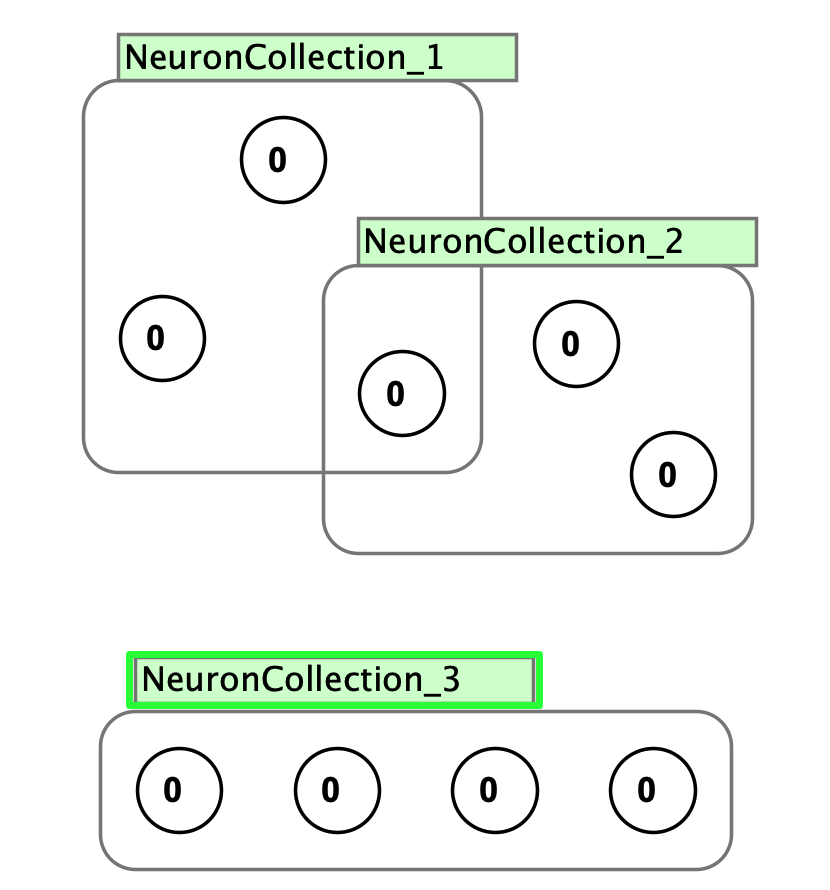
Collections are flexible: neurons can belong to multiple collections simultaneously, and neurons within a collection can use different update rules. Create a collection by pressing g to add a new collection from scratch, or select existing neurons and press Cmd/Ctrl+G to wrap them in a collection. Collections have a green interaction box. Deleting a collection leaves the neurons intact.
Neuron collections can be connected to other collections, neuron arrays, and subnetworks using weight matrices or synapse groups. Synapse groups connect neuron collections using individual synapses; weight matrices provide a faster matrix-based connection. Use the 1-2 trick for matrix-based connections or the 1-3 trick for individual synapse management.
Edit Dialog
Double-clicking the interaction box opens the collection editor:
- Label: Display name for the collection
- Neuron Type: The update rule applied to neurons in the collection
Additional tabs provide access to:
- Neurons: Configure individual neuron properties
- Layout: Arrange neurons spatially (see layouts)
- Input Data: Set up input patterns for testing (see input tables)
Right Click Menu
- Edit…: Opens the collection properties dialog
- Rename Neuron Collection…: Change the display name
- Remove Neuron Collection: Remove the collection wrapper (neurons remain)
- Apply layout…: Rearrange neurons using layout algorithms (keyboard shortcut:
Cmd/Ctrl+L) - Select Neurons: Select all neurons in the collection
- Edit Neurons…: Open an editor for all neurons in the collection
- Select Incoming Synapses: Select synapses targeting this collection
- Select Outgoing Synapses: Select synapses originating from this collection
- Clamp Neurons / Unclamp Neurons: Toggle clamping on all neurons
- Connect selected objects with weight matrix: Connect to other layers using a weight matrix
- Connect selected neuron collections with synapse group: Connect using a synapse group
- Set Collection as Source / Clear Source Neuron Collections: Mark or clear this collection as source for connection operations
- Create supervised model: Set up supervised learning (keyboard shortcut:
Cmd/Ctrl+M) - Input data…: Open the input data dialog
- Add current pattern to input data…: Add current activations to the input data table
- Plot: Create a plot of the collection’s activations over time
- Add image world: Creates an image world coupled to this collection and clamps its neurons so they can clearly display image input. Clamping can lead to unexpected behavior. Note: If you later remove the image world, you may need to unclamp the neurons. You can also create the coupling manually using Add inputs.
- Record activations: Record activation values to a CSV file
- Send Vector Coupling To / Receive Vector Coupling from: Create couplings to or from other Simbrain components